Connect LinkedIn to publish ads and read results, with the ad accounts and Pages of the LinkedIn member who connects.
Connect LinkedIn
Owners and admins connect LinkedIn once per workspace. The connection acts as the LinkedIn member who signs in: Pluto Ads sees the ad accounts and Pages that member has a role on. Everyone in the workspace then publishes through it, within their role (see Members).
If you cancel at LinkedIn, the page says LinkedIn isn't connected: connect again when you're ready. Members see Not connected and "Ask an admin to connect LinkedIn." instead of the button.
What connecting brings in
- Ad accounts the member has a role on, with their currency. Amounts always use the ad account's currency.
- Pages the member has a role on. Ads run as a Page where the member is a Super admin, Content admin or Sponsored content poster.
- Campaigns, ad sets and ads in those ad accounts, read at every sync, so you can publish into a campaign that already runs and the Agent and loops can find them.
- Results for the last 365 days, then new numbers through the day. See Analytics.
Pluto Ads uses Campaign Manager's words: a launch publishes a campaign with its ad sets and ads.
Ad accounts and Pages
Select Manage next to LinkedIn on Integrations to open the LinkedIn page. Ad accounts lists each account with its currency and its switch, and with more than 10 accounts listed, Search ad accounts finds one by name. A row says more only when something differs: what LinkedIn holds the account back for, or the connected member's role when it limits what Pluto Ads can do there (see the table below). Pages lists each LinkedIn Page with its switch, and the member's role when they don't administer it; with more than 10, Search Pages finds one.
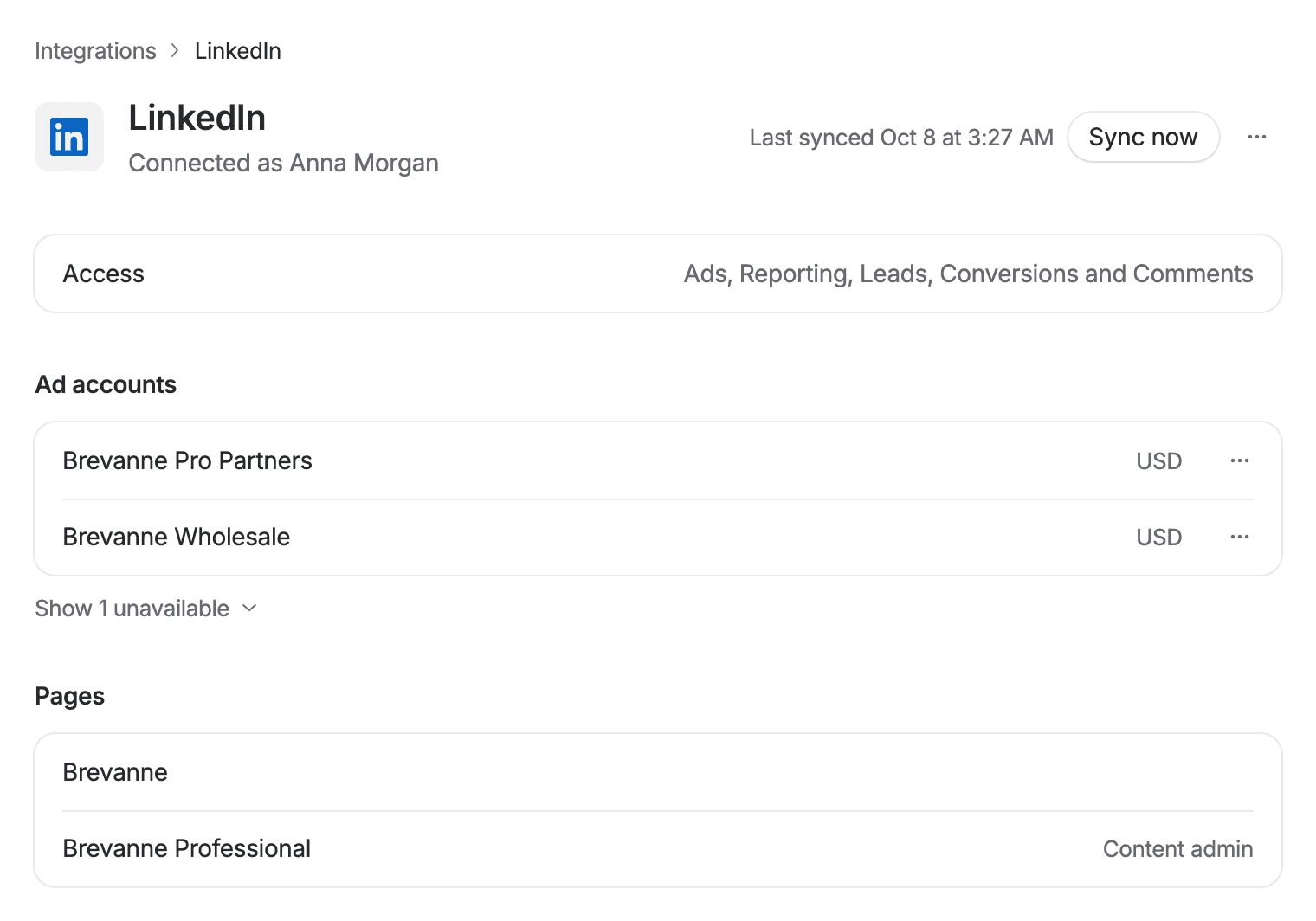
Canceled, draft, pending deletion and removed accounts wait behind Show N unavailable under the list, each with its reason. A test account is marked Test: LinkedIn never serves its ads, so it's a safe place to try a launch.
Each row has a menu with Open in Campaign Manager and Copy ad account ID.
Turn ad accounts on and off
Admins turn an ad account on or off with the switch in its Sync column. Members see which are on.
- On: Pluto Ads syncs the account's campaigns, ad sets and ads, reads its results and leads, and offers it for new launches, in Analytics, in loops and to agents. It counts toward your plan's ad accounts.
- Off: Pluto Ads stops syncing the account and no longer offers it anywhere. An import from it that's still waiting stops at once, and Activity says the ad account was turned off; what it already imported stays. What it already synced stays: its launches, results and leads are kept, read-only, and turning it on again picks up from there. It no longer counts toward your plan.
New ad accounts start off. Each sync lists the ad accounts the member has a role on, so one they get a role on later shows up after the next sync, off, without reconnecting. Until one is on, the ad accounts section says so.
Turn Pages on and off
Admins turn a Page on or off with the switch in its Use column. Every Page starts off, including one the member gets a role on later. Turn on the Pages your ads run as:
- On: offered wherever a Page is chosen.
- Off: the Page isn't offered anywhere a Page is chosen, and a launch whose ad set names it can't publish until you choose a Page that's on. Ads already live as the Page go on, and so do leads: LinkedIn's lead forms belong to the ad accounts.
With no Page on, the Pages section says to turn one on, and a launch's Page picker and checklist point here.
Roles
LinkedIn decides what the connected member's role allows, so it decides what Pluto Ads can do in each account.
| Your role | What Pluto Ads can do |
|---|---|
| Account manager, Campaign manager or Billing admin | Publish and change campaigns, ad sets and ads |
| Creative manager | Create and change ads |
| Viewer | Read the account and its results |
A change the role doesn't allow comes back as "Your LinkedIn role doesn't allow this." Ask an account manager to give the member a role in Campaign Manager that can make it.
Add more ad accounts
The connection lists every ad account the member has a role on. To add one, give that member a role on it in Campaign Manager, then select Sync now. With no ad account yet, the page links to Create one in Campaign Manager.
Pro turns on up to 3 ad accounts per platform across your organization's workspaces, so 3 LinkedIn ad accounts, counted apart from Meta's. Business and Enterprise turn on as many as you need. At Pro's 3, the switch of an account that's off waits, and the LinkedIn page says so with Upgrade to Business. Ad accounts that are on always stay on.
Ad account status
When LinkedIn holds an account back, its row says so on the right. Hover the words for what to do.
| The row says | What it means | What to do |
|---|---|---|
| Billing hold | LinkedIn needs a payment method. | Add one in Campaign Manager. |
| Budget reached | The account's total budget is spent. | Raise it in Campaign Manager. |
| Ended | The account's end date has passed. | Change it in Campaign Manager. |
| Restricted | LinkedIn restricted the account. | Contact LinkedIn support. |
| On hold | LinkedIn is holding the account. | Contact LinkedIn support. |
| Stopped | The account isn't serving ads. | Check it in Campaign Manager. |
Syncing
- We sync when you connect and every hour after that.
- Sync now, on the LinkedIn page, syncs right away. Last synced says when the last one finished.
- A change made in Campaign Manager to a campaign, ad set or ad shows in Pluto Ads at the next sync, in its change history. An ad's text, link and button are the exception: LinkedIn doesn't share an ad's post with Pluto Ads, so they show as Pluto Ads published them. Change them in Pluto Ads, not in Campaign Manager.
- LinkedIn's review of an ad Pluto Ads published shows at the next sync too, and a rejection reaches the Inbox of the people who follow the ad or launched it, with what to change (Rejected ads in notification settings). Ads of a test ad account, which LinkedIn always rejects as test ads, aren't announced.
- Results update more often than that. Analytics says how often.
Import from LinkedIn
Import from LinkedIn turns campaigns that already run in Campaign Manager into launches you manage in Pluto Ads. Anyone who can edit launches can import.
Each campaign becomes one published launch linked to what runs on LinkedIn, with its ad sets, audiences, budgets and bidding. Ads that Pluto Ads published come along with their images and videos. LinkedIn doesn't share the text and files of ads made in Campaign Manager with Pluto Ads, so those ads stay in Campaign Manager and keep running there; the report lists them. Pausing, budget changes and pending changes then work as on any LinkedIn launch (see Publishing).
The report lists, per campaign, its ad sets, ads and copied files, and Open launch. Single image, video, carousel and document ad sets come along to edit. Ad sets in a format Pluto Ads doesn't publish (Text, Spotlight, Follower, Jobs, Message, Conversation and Event ads) come along read-only, and the report names each one:
- The launch says once above the board that Pluto Ads shows and reports them, and that you edit them in Campaign Manager.
- Their ads open with what LinkedIn reported at the import: a Message ad's subject, message and button page, a text ad's headline, description and page, an Event ad's text and event. Open in Campaign Manager opens the account.
- Their settings show disabled. Nothing adds ads to them, moves, copies or deletes them, and they hold no pending changes. The Status page still shows how they deliver, and Analytics their results.
Importing a campaign that's already a launch refreshes the launch. Ad sets and ads added in Campaign Manager join it, with their images and videos, and nothing is added twice. When the launch has changes that LinkedIn doesn't have, Replace changes made in Pluto? lists them first. Replacing puts LinkedIn's values back in the launch.
Reconnect LinkedIn
LinkedIn asks the member to sign in again once a year. From 7 days before access ends, the LinkedIn page shows LinkedIn access ends in with the days left, and admins see Reconnect. Hover Last synced for the exact date.
LinkedIn can also end access earlier, for example when the member removes Pluto Ads in their LinkedIn settings. The LinkedIn page then shows LinkedIn access ended with Reconnect, and publishing and syncing wait until an admin reconnects. When the member removed Pluto Ads, you can still browse what's synced for 10 days; after that it's deleted, and reconnecting syncs it again. Reconnecting signs in again; nothing else changes.
Disconnect LinkedIn
Admins open the more actions menu next to Sync now on the LinkedIn page, select Disconnect, and confirm Disconnect LinkedIn? with Disconnect. Pluto Ads ends its access at LinkedIn. Your launches stay saved. Reconnect LinkedIn before publishing again.
To connect another LinkedIn member, disconnect first, then connect as that member.
Good to know
- One LinkedIn connection per workspace. Each workspace in an organization connects its own.
- LinkedIn's terms limit how long Pluto Ads keeps what it reads from LinkedIn: results, values found on LinkedIn and what the Agent and loops read from LinkedIn for 365 days. Ten days after you disconnect, or after Pluto Ads is removed in your LinkedIn settings, the LinkedIn data synced into the workspace (ad accounts, Pages, lead forms, campaigns, ad sets, ads, results, comments, and what the Agent and loops read from LinkedIn) is deleted, unless an admin reconnects first. Your launches, leads, chats and the history of changes made in Pluto Ads stay.
- If connecting fails, start again from Integrations in the same browser and finish within 15 minutes. An organization without a plan is read-only and can't connect until an owner or admin chooses one.
- Agents and scripts can read, sync and disconnect LinkedIn through the MCP server and the Public API. Connecting always takes a person allowing access at LinkedIn.