Launches
A launch is one Meta campaign in the making: its settings, its ad sets and its ads. You build it on a board, review it with your team, then publish it. This page covers everything up to publishing; Publishing takes it from there.
Create a launch
Open Launches in the sidebar. It opens your most recently changed draft. With no drafts yet, it shows Build your first launch with Create launch, or Import from Meta to bring in campaigns that already run (see Import from Meta). To start another, select New launch (the plus next to the Launches list in the sidebar). A new launch starts from your workspace's Meta defaults, so its Page, copy and ad set settings are filled in before you touch them.
You can also start from a copy template: open Settings, Copy templates and select Use template.
The sidebar lists your five most recently changed launches that aren't published. All launches opens a panel with two views: Active, every launch that isn't published, with search by name, campaign or ad account, and Archived (see Delete, archive and restore). Published launches are under Analytics, Launches, with a Published and a Drafts tab.
Creating a launch needs a connection. Everything after that works offline too; see Collaboration.
Add ads
Each image or video you add becomes one ad: an image ad or a video ad. On the board and in menus, ads are called creatives.
Select Add creatives, then:
- Upload files to add JPEG, PNG or WebP images and MP4 or MOV videos from your computer, up to 500 at a time. The files also land in your Media library.
- Choose from library to pick images and videos already in the Media library, then Add 3 to launch (the count follows your selection). Browse All media, Unfiled or one of your folders, and use the Unused and Used tabs to see whether a file is already in a launch. Only files that finished processing can be picked.
You can also drop image and video files anywhere on the board. Dropped on an ad set, they land in that ad set. New ads get their names from the launch's naming pattern (see Launch settings) and start at your default review status.
Video ads
A video ad works like an image ad: the same copy, destination, identity, review and publishing. What differs:
- The card shows the video's poster frame, taken one second in, with its length (for example
0:15). - The ad editor's preview plays the video.
- Creative settings show the enhancements Meta offers for videos (Adjust aspect ratio, Expand video, Video filters) and those for every format. Image enhancements don't apply to a video ad. In Launch settings, Creative holds the image and video enhancements separately, so each ad gets the ones for its format.
- The Media library shows Meta's specs for each video as warnings, per placement: for example, feeds crop a 9:16 video to 4:5, and in-stream placements need at least 5 seconds. Warnings never block publishing, because Meta places the ad where it fits. See Media library.
Publishing uploads the video to Meta and waits until Meta has processed it before it creates the ad. See Publishing.
Board and table
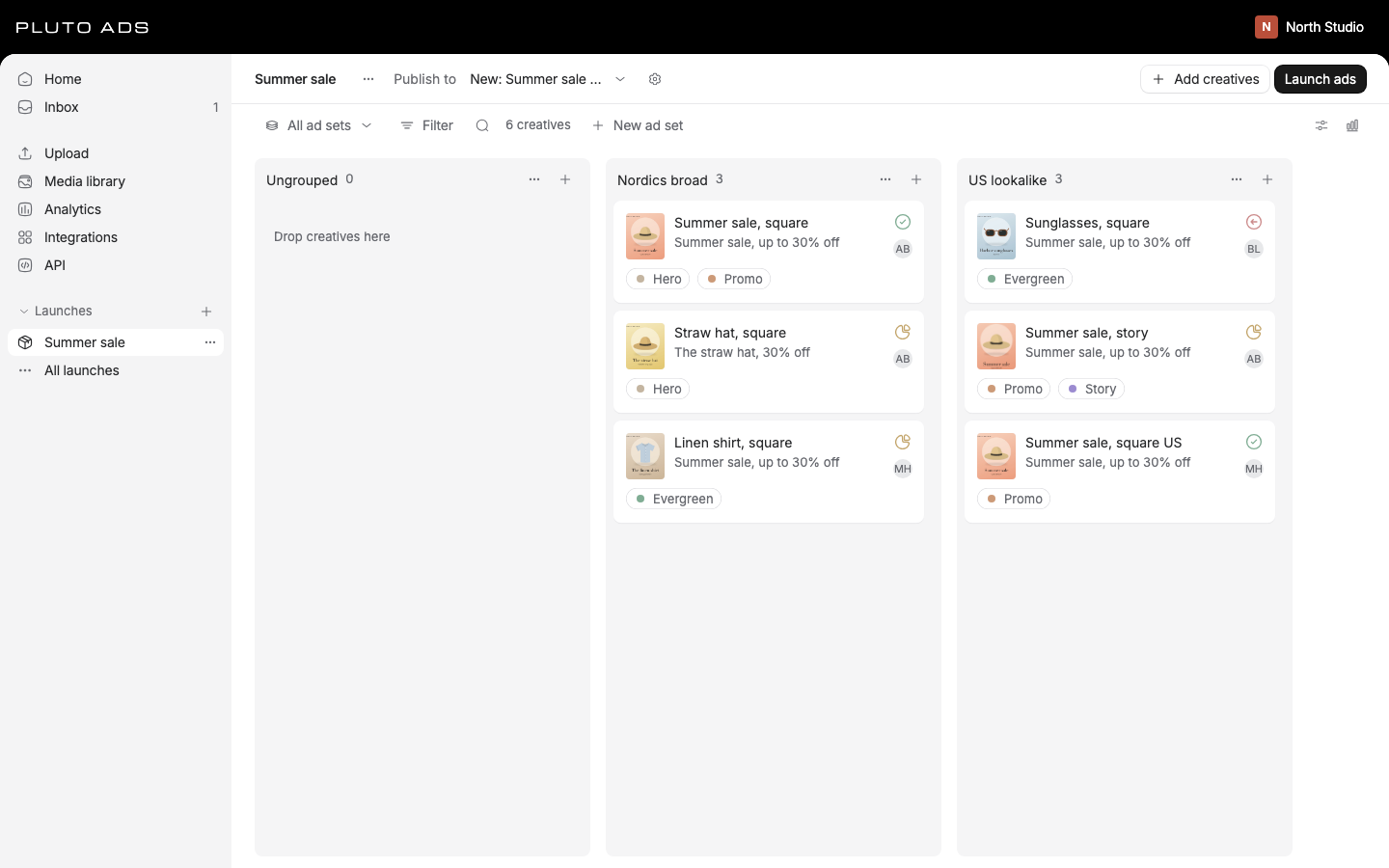
The board shows one column per ad set, plus Ungrouped for ads without one. Drag cards between columns to move ads, or within a column to reorder them. Ungrouped ads are drafts: publishing leaves them out until you move them into an ad set (see What publishes).
Above the board:
- All ad sets limits the view to the ad sets you pick.
- Filter narrows by Readiness (Ready, Needs attention), Status, Tags and Assignee.
- Search (press
/) matches ad names, primary text, headlines, descriptions and ad set names. Every word you type must match. - New ad set adds a column.
- Display options switches between Board and Table and sets grouping, ordering and which properties each card or row shows. It also opens Keyboard shortcuts.
- Board overview counts creatives by readiness, status or assignee. Select a row to filter the board to it.
Display options are yours: they don't change the launch or what your teammates see.
| Option | Choices |
|---|---|
| Group by (table) | Ad set, None. On the board, columns are always ad sets. |
| Ordering | Manual, Name, Status, Readiness, ascending or descending |
| Show empty ad sets | On or off |
| Card properties | Status, Assignee, Tags, Facebook Page, Ad copy, Readiness |
| Table properties | Ad set, Status, Assignee, Tags, Readiness, Copy preview, Primary text, Headline, Description, URL, Identity, CTA |
The table groups rows by ad set, with Collapse all and Expand all. Each column's menu (Actions for the ad set) offers Ad set settings, Duplicate to launch..., Move left, Move right, Select all in ad set and Hide ad set. Hidden ad sets come back with Show hidden ad sets.
Keyboard shortcuts
Press ? on the board to see them all, or open Display options, Keyboard shortcuts.
| Action | Keys |
|---|---|
| Show keyboard shortcuts | ? |
| Find creatives | / |
| Open focused creative | Enter |
| Select focused creative | X |
| Select all matching creatives | Cmd+A or Ctrl+A |
| Select a range | Shift+Click |
| Add or remove one creative | Cmd+Click or Ctrl+Click |
| Move focused or selected creatives | M |
| Open actions | Shift+F10 |
| Undo last deletion | Cmd+Z or Ctrl+Z |
| Clear selection or cancel dragging | Esc |
| Previous or next creative in the editor | K and J, or Alt+Left and Alt+Right |
| Save bulk changes or post a comment | Cmd+Enter or Ctrl+Enter |
| Return to the board from the editor | Esc |
| Open or close the Agent | Cmd+J or Ctrl+J |
Shortcuts don't fire while you type in a field or while a menu or dialog is open.
Launch settings
Select the settings icon next to Publish to in the launch header to open Launch settings. Nothing is saved until you select Save settings.
| Section | What it holds |
|---|---|
| General | Launch name, Ad account, Default identity and Schedule |
| Campaign | Where the launch publishes: a new campaign or an existing one |
| Ad set defaults | Pixel, conversion event, attribution, audience approach, placements, Initial ad delivery, EU advertiser (Beneficiary, Payer) |
| Identity | The Facebook Page and Instagram account ads publish as |
| Ad copy | Primary text, Headline and Description, each with variations, and the Call to action. Start from template fills them from a copy template |
| Destination | Website URL and URL parameters |
| Creative | Advantage+ creative enhancements, Multi-advertiser ads and catalog products |
| Naming | Ad names and Ad set names patterns |
The ad account decides which Pages, pixels, catalogs and campaigns you can choose. Changing it asks first: creatives, copy and ad sets stay, while the Page, pixel, catalog and custom audiences switch to the new account's and you choose a campaign in that account.
Schedule sets a time for Pluto to publish the launch. Leave it empty to publish yourself. Every launch setting applies to all its ad sets and ads unless one of them changes it (see Following the launch).
Naming patterns take {{asset.name}}, {{campaign.name}}, {{index}} and {{date}} for ads, and
{{campaign.name}}, {{index}} and {{date}} for ad sets. A pattern names ads and ad sets you add
after the change; existing names stay.
Meta defaults (in Settings) is where every new launch's settings come from. Set them once for all ad accounts, or per ad account with Applies to. Changing defaults never changes launches that already exist.
Campaign and budget
Publish to in the launch header picks the campaign. Choose one of the ad account's campaigns, or New campaign to create one when the launch publishes.
Publishing into an existing campaign adds new ad sets and ads to it. Its objective, budget and bidding stay as set in Meta.
A new campaign takes a Campaign name, an Objective, Special ad categories (financial products and services, employment, housing, social issues, elections or politics, or online gambling and gaming; declaring one limits targeting) and a Budget:
- Campaign budget: one daily or lifetime amount that Meta shares across ad sets, spending where results are best.
- Ad set budgets: each ad set sets its own amount under Budget & bidding. Share budget between ad sets lets each ad set share up to 20% of its budget with better-performing ones.
Bid strategy applies to the whole campaign. Strategies with a cap or goal take the amount on each ad
set. Amounts are in the ad account's currency and written as plain numbers, like 50 or 49.99.
Ad sets
An ad set groups ads that share an audience, budget, placements and schedule. Select New ad set, name it and set it up in these sections:
| Section | Settings |
|---|---|
| General | Ad set name, and a summary of locations, age range and placements |
| Locations | Include countries and Exclude countries |
| Audience | Audience approach, age, gender, custom audiences, interests and languages |
| Conversion | Performance goal, Pixel and Conversion event |
| Budget & bidding | Budget (daily or lifetime) and Amount, plus a bid cap, cost goal or ROAS goal when the campaign's bid strategy needs one |
| Placements | Advantage+ or manual placements, per device |
| Schedule | Start time, End time and Initial ad delivery |
Select Create ad set to add it. Ad set names are unique within a launch.
An ad set always saves with a name, even when it isn't ready to publish yet:
- Needed before publishing lists what Meta still needs, such as countries, the EU beneficiary and payer, devices, placements or a pixel. Select an item to go to its section and field. The launch's checklist asks for the same items when you select Launch ads.
- A value that isn't valid (a budget that isn't an amount, an end time before the start time) shows its problem at the field and under Not saved until fixed. Saving keeps that field's last valid value and saves everything else.
The country picker has groups: EU (27), US, Worldwide, Big 4, Nordics (5) and DACH (3). Selecting a group adds its countries; selecting it again removes them. Pick two or more countries and select Save as group to keep your own group. Saved groups are shared with the workspace.
Reorder ad sets with Move left and Move right in the column menu.
Duplicate an ad set with Duplicate to launch...: choose this launch or another one. The copy brings the ad set's ads, and copied ads start a new review. Values tied to the ad account follow the destination launch.
Delete an ad set with Delete ad set in its column menu, or the trash button in the ad set editor.
Pluto asks first (Delete "Broad US"?, with the ad set's name) and says what happens: the ad set is
deleted, and its ads stay in the launch, ungrouped, with their comments and activity. Nothing is
archived, because nothing reached Meta. Undo it with Undo in the message that follows ("Broad US
deleted"), Undo delete in a column menu or Cmd+Z right after: the same ad set comes back and its
ads that are still ungrouped move back in. Teammates see the column leave their board as it happens.
Deleting works offline and syncs when you reconnect.
A live ad set can't be deleted here, because Meta would keep running and spending on it. If the ad set, or an ad published into it, exists in Meta, Pluto shows Ad set is live in Meta and offers Open publishing: pause it, or delete it in Meta there. Once Meta confirms that deletion, the ad set and its ads are archived with their history (see below). Hide ad set only hides the column from your view. Scripts and agents delete ad sets through the API and MCP with the same rule; see Launches, ad sets and ads.
Ad editor
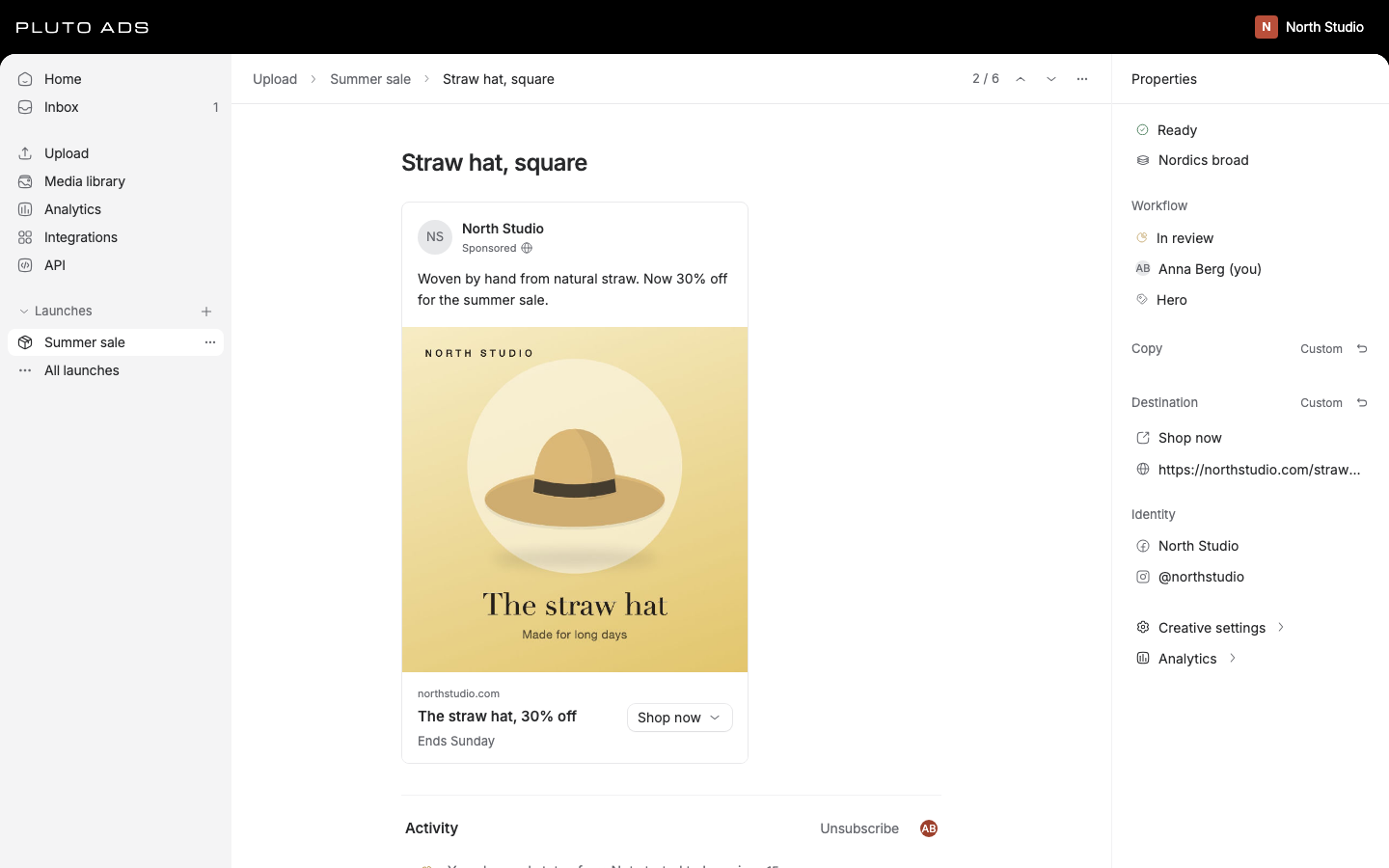
Click a card, or press Enter on it, to open the ad. The ad shows as a Facebook feed preview you edit in
place: Ad name, Primary text, Headline, Description, Website URL and Call to
action.
The panel on the right holds:
- Readiness: Ready, or Needs attention with a To complete list. Select a problem to jump to its field. An ad in Ungrouped says it won't be published until you choose an ad set.
- Ad set, and Workflow: status, assignee and tags.
- Copy, with Copy template to fill the copy from a template.
- Destination: Call to action and Website URL.
- Identity: Facebook Page and Instagram account.
- Creative settings: this ad's creative enhancements.
- Analytics: the ad's results once it runs.
Changes save as you type. The bell subscribes you to the ad's comments and changes. Use J and K to
step through ads without closing the editor.
Following the launch
Every ad and ad set follows the launch unless you change it. Change the launch's copy, and every ad that follows it shows the new copy at once, including ads a teammate edited offline.
Following the launch is quiet: the Copy, Destination and Identity headers show no marker, and Creative settings says From the launch. When you change a group of settings on one ad, that group's header shows an undo icon. Hover it to read why and what it does, for example "Copy is set for this ad instead of coming from the launch. Use launch copy." Select it to put the launch's values back:
| Group | Reset |
|---|---|
| Copy | Use launch copy |
| Call to action and URL | Use launch destination |
| Identity | Use launch identity |
| Creative settings | Use launch settings |
An edit that sets a value equal to the launch's counts as following the launch, so the marker goes away on its own.
Ad sets work the same way for the audience approach (Audience), the pixel, conversion event and attribution (Conversion), Placements, and Initial ad delivery (Schedule). Each of these sections starts with a line such as "Placements from the launch's ad set defaults." or "Placements changed for this ad set.", with Use launch defaults to reset. The EU advertiser names under Locations follow the launch the same way. Countries, age, gender, custom audiences, budget and the start and end time belong to the ad set alone.
Edit many ads at once
Select ads (X, Shift+Click, Cmd+Click, or Select all in ad set), then select Edit in the
toolbar at the bottom. The bulk editor opens with the number of creatives selected.
- Apply to switches between your selection and every creative in the launch.
- Fields that differ between the selected ads say so, for example Multiple ad sets.
- A group that some or all of the selected ads changed shows the undo icon; hovering it says which ("set for some of the selected ads"). Selecting it resets the group for all of them.
- Changes to apply lists what you changed. Remove one change with its reset button.
- Also use as the launch copy appears when you edit copy. It changes the launch's copy first, so the edited ads follow the launch instead of holding their own copy.
Select Apply to N creatives to save. For status, assignee, tags, moving, duplicating and deleting many ads, use the toolbar's more menu instead.
For rule-based edits of hundreds or thousands of ads, the API and MCP offer bulk edits with a preview and a change set you can revert. See Batches and the MCP tool catalogue.
Tags, statuses and assignees
Each ad has one review status, one assignee and any number of tags. Set them in the ad editor under Workflow, or for many ads through the card menu or the selection menu (Status, Assignee, Tags).
- Tags group ads by concept, test or anything your team tracks. Type a new name in the tag picker to create one. Manage them in Settings, Tags: rename, describe, Archive... (no longer offered, existing assignments stay) or Delete... (removed from every ad).
- Assignee is a workspace member. Invite teammate... in the assignee picker sends an invitation without leaving the ad.
- Status comes from your workflow (below).
Filter the board by any of the three, and compare tags in Analytics.
Review workflow
Statuses live in Settings, Statuses, in four categories: Unstarted, In progress, Approved and Changes requested. A new workspace starts with Not started, In review, Approved and Changes requested.
Tags live in Settings, Tags. A new workspace starts with three, the usual split in creative testing: Concept (a new idea or angle), Variation (a new version of an existing ad) and Winner (proven, to scale and build variations from). Rename, recolor or delete them like any other tag.
- New ads start at the default status (Not started at first). Make default is offered for statuses in the Unstarted category.
- Add a status with the plus next to its category. Drag to reorder.
- A status in use can't be deleted: move its ads to another status first. Each category keeps at least one status.
A typical review: the creator moves an ad to In review, a reviewer comments and sets Approved or Changes requested, and the creator fixes and sends it back. Approval belongs to what was approved. When an approved ad's content, image or video changes, it goes back to In review, or to the first In progress status when your workflow has no In review. Comments and renames don't reset it.
Statuses organize the work. They don't block publishing; the publish checklist does (Publishing).
Comments and mentions sit under the ad preview. Type @ to mention a teammate; they get it in their
Inbox. See Collaboration.
Share with guests
Guests see only the launches shared with them (see Guests). In the launch header, select Share and turn on Share with guests. Guests can then review the launch and its comments that aren't internal, and the button reads Guests can view. Turn it off the same way. Sharing needs a connection.
Owners and admins can turn on Share new launches with guests in Settings, Members, under Guests. While it's on, every new launch in the workspace starts shared. It's off by default, and it doesn't change launches that already exist.
Move and duplicate
Move to ad set (or M, or drag) moves ads within the launch. Choose Ungrouped to take them out
of any ad set.
Move to launch... moves draft ads to another launch that isn't published, into an ad set there or No ad set. Ads keep what they show, their comments, activity, tags and followers. Values tied to the ad account, like the Page, follow the destination when it uses another ad account. Published ads can't move: duplicate them instead.
Duplicate on an ad places a copy right after the original, back at the default status. Duplicate in the launch menu (the three dots next to the launch name) creates a new draft with the same destination, settings, ad sets and ads; its ads restart at the default status. Nothing is published.
Moving to another launch and duplicating an ad set need a connection.
Delete, archive and restore
Delete an ad from its card menu or the editor. An ad nobody discussed is deleted; undo it with
Undo delete or Cmd+Z right after. An ad with comments or activity is archived instead, so the
conversation stays readable. A live ad can't be deleted here: pause it, or delete it in Meta
(Publishing).
Archived ads in the launch menu lists the launch's archived ad sets and ads, with who archived each and when. It appears once something is archived. Open an ad to read its conversation. Archived items aren't on the board, aren't published and aren't counted.
- Restore puts an ad or ad set back as the same draft when it never reached Meta.
- Restore as draft creates a new draft copy when Meta deleted the original, so the original keeps its Meta record and its results.
Delete a launch with Delete in the launch menu, then Delete launch. This works only for drafts that never published; for any other launch Pluto says "Only drafts that were never published can be deleted. Archive this launch instead." Its creatives leave the launch; uploaded media stays in the Media library.
Archive a launch from the launch menu. It leaves every list, and devices no longer keep it for offline use. To find it again, open All launches in the sidebar and select Archived. The list shows the 50 most recently changed archived launches; search by name finds older ones.
An archived launch opens read-only, with the banner This launch is archived. Its board, ads and settings are there to look at, but nothing can change: no edits, no new ads, no publishing and no live changes. Select Restore launch in the banner, Restore in the archived list or Restore in the launch menu to bring it back into every list for everyone. Restoring needs a connection and a role that can edit. Scripts and agents archive and restore through the API and MCP; see Launches, ad sets and ads.
Good to know
- Ads are single-image or single-video ads. Pluto doesn't build carousel ads.
- Scripts and agents can replace an ad's image or video through the API and MCP. The ad keeps its copy and settings. On a published ad it becomes a pending change: Meta gets a new creative and reviews the ad again.
- An ad needs a name, primary text, a headline and a valid website URL to publish. Meta's limits apply: 1,024 characters of primary text, 255 for a headline or description.
- Ads without an ad set aren't published: they stay drafts in Ungrouped and never block the rest of the launch. Move them into an ad set to include them.
- Editing a published launch holds your changes as pending changes until you apply them in Meta. See Publishing.
- Scripts and agents build launches with the same rules through the API and MCP, including whole launches as one launch spec.