Media library
The media library holds every image and video your workspace uploads, so you can reuse them across launches. This page covers uploading, folders, search, archiving and deleting, storage and adding media to a launch.
Uploading files
Open Media library in the sidebar, select New, then Upload files. You can also drag files from your computer onto the library, or onto a folder to upload them straight into it. Choose up to 500 files at a time; with more, the first 500 upload and the library says the rest weren't uploaded. Files land where you are: in the open folder, or at the top of the library.
| Type | Formats | Largest file |
|---|---|---|
| Images | JPG, PNG, WebP | 30 MB |
| Videos | MP4, MOV | 4 GB |
These are Meta's limits for ad images and videos. A file of another type, or over the limit, is refused before anything uploads, with the reason next to its name.
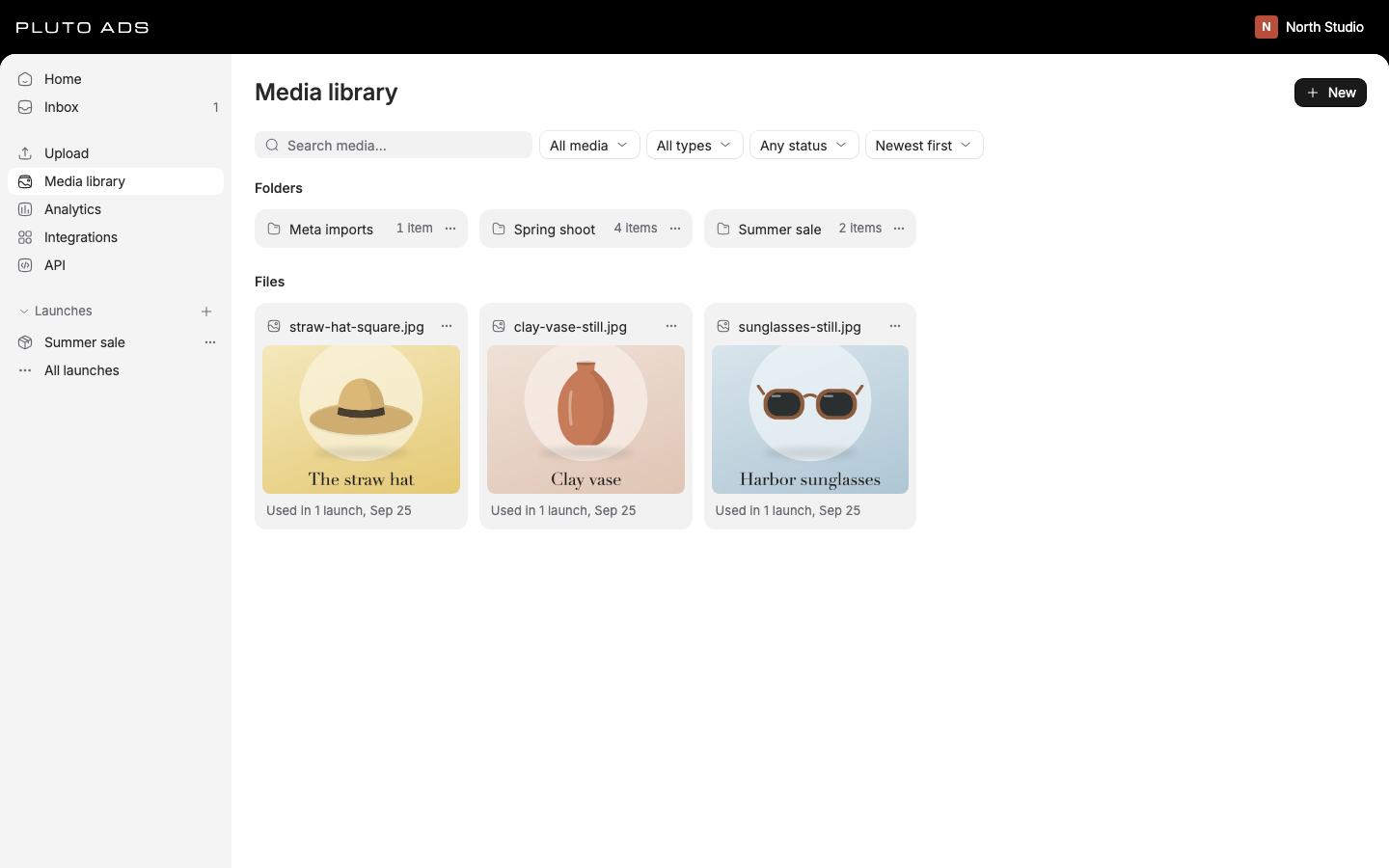
Each tile shows its state while it works: Uploading 42%, then Processing, then when it was added
and whether a launch uses it (Not used yet or Used in 2 launches). Processing reads the file's
dimensions and length and makes a preview: a thumbnail for an image, a poster frame for a video (taken
one second in, or the first frame of a video under 2 seconds). Video tiles show their length, for
example 0:15. A file that can't be read shows Failed with the reason.
Uploads go straight from your browser to storage, in parts for large files. If your connection drops, the tile says Waiting for connection and the upload continues from the parts already sent once you are back online. Files that still fail are listed in a banner, A file wasn't uploaded or 3 files weren't uploaded, with Retry upload (or Retry 3 uploads).
While files upload, the New button reads Uploading 3 files, and the activity indicator in the top bar shows the upload's progress with an estimate of the time left, so you can keep working elsewhere in the app. Select it to see each upload; Clear removes finished ones from the list.
Uploads that don't finish
Close the tab halfway through an upload, or start one on a laptop you then put away, and the file never arrives. The library shows it as Uploading until we stop it: after 1 hour 15 minutes without progress, the tile says The upload didn't finish. We then remove the parts already sent from storage, and the same file can be uploaded again.
Why 1 hour 15 minutes: the links your browser uploads to stay valid for 15 minutes, and a slow upload that keeps sending parts never counts as stopped. The extra hour lets an upload that sent its last part shortly before then still finish.
A tile that says The upload didn't finish offers:
- Retry (also Retry upload in the tile's menu), in the tab that started the upload while it's still open. Only that tab has the file, so another device or a reopened tab can't retry it; upload the file again there instead.
- Remove, anywhere. It archives the item right away, without asking, because there is nothing in it to keep.
Both need a connection.
Duplicates
We recognize a file by its content (a SHA-256 hash of its bytes), not its name. Uploading a file that is
already in the library adds nothing: the library says <name> is already in your library. (or 3 files are already in your library.) and keeps the one copy. Renaming a file doesn't change this, and neither does uploading it into another folder.
Spec warnings
After processing, we check each file against Meta's ad specs. A file outside them still works. Its tile shows the first warning; hover it for the details. The viewer lists every warning the file has.
- Low resolution: images narrower than 600 pixels, or videos under 120 pixels on a side. Instagram placements need videos at least 250 pixels wide, and Reels at least 500 for 30 seconds or longer.
- Aspect ratio: shapes taller than 9:16, or wider than 1.91:1 for images and 16:9 for videos. Placements may crop them.
- Format: WebP images. Meta recommends JPG or PNG, and may convert or reject WebP.
- Duration: videos shorter than 1 second or longer than 241 minutes.
- Size unknown or Length unknown: we couldn't read a video's dimensions or length, so they weren't checked.
Videos also get a warning for each placement that won't show them whole:
| Warning | When |
|---|---|
| Feed crop | Taller than 4:5. Feeds crop it to 4:5. |
| Stories and Reels | Not 9:16. Stories and Reels show it with bars or cropped. |
| In-stream | Shorter than 5 seconds or longer than 10 minutes. In-stream placements skip it. |
| Reels length | Longer than 15 minutes. Instagram Reels skip it. |
| Instagram length | Longer than 60 minutes. It runs on Facebook only. |
| No poster | We couldn't take a frame from the video. Meta's own thumbnail is used when it publishes. |
These come from Meta's video ad specs. A placement warning doesn't block publishing: with Advantage+ placements, Meta shows the ad where it fits. A 9:16 video, the most common ad shape, gets Feed crop and nothing else.
Folders
The library works like a drive. Each file lives in exactly one place: the top of the library, or one folder. The top shows your folders under Folders, with how many items each holds, then Files: only the media that isn't in a folder. Folders are one level deep; a folder can't hold another folder.
- Create a folder: New, then New folder. Enter a Folder name and select Create folder. Names are up to 80 characters and unique in the workspace, ignoring case.
- Open a folder: select it. Each folder has its own address (
/media/folders/<id>), so you can bookmark or share it. Back to media library returns to the top. - Rename or delete a folder: use the folder's actions menu (Rename, Delete folder). Deleting a folder never deletes files: its media moves back to the top of the library.
To move files, drag them onto a folder. Drag several at once by selecting them first. Inside a folder, drag files onto Back to media library to take them out of the folder. The top bar confirms the move, for example Moved 3 files to Spring shoot, with Undo and Open folder.
Without dragging, select files and choose Move to folder in the selection bar or the file's menu. Pick a folder, or Media library (no folder) to take them out of folders, then Move media.
Search and filters
Type in Search media to find files whose name contains the text, ignoring case. Next to it:
- Usage: All media, Used in launches or Unused.
- Type: All types, Images or Videos.
- Status: Any status, Ready, Processing, Uploading or Failed.
- Archived media: Hide archived, Include archived or Only archived.
- Order: Newest first, Oldest first, Name A-Z or Largest first. Largest first shows each file's size on its tile.
Inside a folder, search and filters look only in that folder. At the top of the library, searching, filtering, sorting by size or showing archived media looks through every folder, and each result says where it lives, for example In Spring shoot, used in 1 launch.
Selecting and opening files
Click a tile to select it. Hold Cmd (Ctrl on Windows) while clicking to add or remove a tile, or Shift to select a range. From the keyboard, Space adds the focused tile to the selection. Click empty space or press Esc to clear the selection.
The selection bar offers Add to launch, Move to folder, Rename, Download original, Archive and Delete. Rename and Download original show when one file is selected; Archive doesn't show while a file is still uploading, and Delete doesn't show while a file is uploading or processing.
Each tile's menu (also on right-click) has Open, Add to launch, Show in launch, Rename, Move to folder..., Download, Archive and Delete.... Show in launch opens the launch that uses the file, or lists them when several do. Right-click a tile that's part of a selection to act on the whole selection.
Double-click a tile, press Enter on it, or choose Open in its menu, to see it full size, or play it. The viewer shows its size, dimensions, length for videos and upload date, which launches use it with how many ads each, and its spec warnings.
Adding media to a launch
From the library, select processed images and videos and choose Add to launch. Pick a launch that isn't published, or New launch..., then Add media. Each file becomes one ad: an image ad or a video ad. The library then says how many were added, with Open launch to go there. Files still uploading or processing can't be added.
From a launch, select Add creatives, then Choose from library. The picker shows processed images and videos, with All, Unused and Used tabs and a search field. Select one or more and choose Add 3 to launch (the count follows your selection). Launches are covered in Launches.
Archiving and deleting
Archive files you no longer want to see: select them and choose Archive. It happens right away, and the notice at the top offers Undo until it closes. Archived media leaves the library, its search and the launch picker. Ads that already use it keep working, and published ads in Meta are not affected. Archived files stay stored and still count toward your media storage.
To see archived files again, choose Include archived or Only archived; their tiles say Archived. An archived file can't be brought back into the library. To use it again, upload it again. The new upload becomes a new item, because an archived copy doesn't count as a duplicate.
Delete removes a file for good: select it, choose Delete, then Delete for good. Its stored files are removed and it no longer counts toward your media storage. This can't be undone. You can't delete a file while it's uploading or processing, or while a launch that isn't published uses it: remove it from that launch first, or archive it instead. Ads already published in Meta keep running.
We never delete your media on our own. Files stay until someone in your workspace deletes them.
Storage
Media storage is shared by every workspace in your organization. Owners and admins see how much is used under the library's title, for example 12 GB of 500 GB used across Acme. Your plan includes an amount of storage; see Media storage.
When storage is full, uploads pause and the library says Storage is full, with Add storage. When extra storage has reached the limit your organization set, it says Extra storage limit reached, with Raise limit. An organization owner or admin makes the change, and uploads continue once it's done.
Good to know
- Changing the library needs a role that can edit the workspace. Without one, the actions are disabled and say why.
- Uploading, renaming, moving, archiving, deleting and changing folders need a connection. The library you have already seen stays readable offline.
- Search matches file names only. It doesn't look inside images or videos.
- Deleting a launch doesn't touch its media: uploaded files stay in the library.
- Agents and scripts use the same library through the API: see Media and the MCP tool catalogue.