Connect Meta
Pluto Ads publishes to Meta and reads your results from it. Connecting loads your ad accounts, Pages and the structure of what already runs, and starts importing insights. It never turns your existing ads into launches: you choose what to manage in Pluto with Import from Meta.
Connecting
Admins and owners connect Meta once per workspace:
- Open Integrations and select Connect Meta.
- Log in with Facebook and allow every permission Pluto asks for. If Facebook asks which businesses, ad accounts, Pages or Instagram accounts to share, choose the ones you want to use in Pluto.
- Meta sends you back to Integrations. The banner says "Meta connected", and your ad accounts and Pages appear as soon as the first sync finishes.
Pluto asks Meta for these permissions, and uses each one for one thing:
| Permission | What Pluto uses it for |
|---|---|
ads_management | Publish and change ads |
ads_read | Import results |
business_management | See ad accounts owned by a business |
pages_show_list | List your Pages |
pages_read_engagement | Read the Pages you publish from |
pages_manage_ads | Run ads from your Pages |
instagram_basic | Run ads on Instagram |
pages_read_user_content | Let your agents read the comments people leave on your ads (Agents) |
pages_manage_engagement | Reply to, hide and delete those comments as your Page |
instagram_manage_comments | Read, reply to, hide and delete comments on your Instagram ads |
pages_manage_metadata | Hear about new comments and leads the moment they arrive (optional) |
leads_retrieval | Read the leads people submit through your lead forms |
If you turn off the permission to manage ads, Meta doesn't connect, and the banner asks you to connect
again and allow every permission. Turning off a comment permission only stops agents from moderating
comments on that platform, and turning off leads_retrieval only stops reading leads. Publishing keeps
working, and Integrations shows Reconnect Meta to turn on every feature with what's off. Members see
Not connected and "Ask an admin to connect Meta." instead of the button.
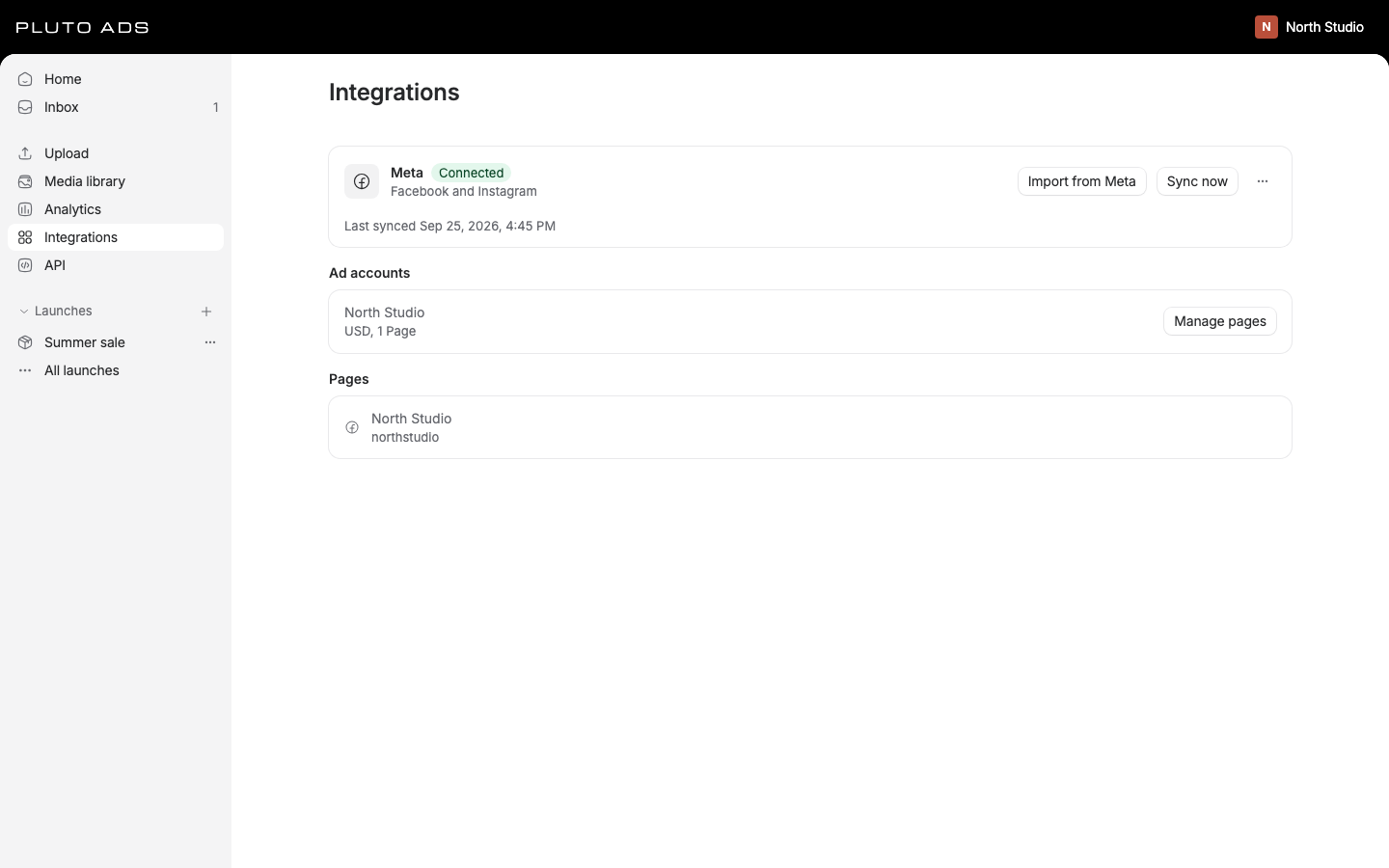
What we import on connect
Connecting reads what makes the app useful on day one, and nothing nobody asked for.
- Ad accounts, with their currency and timezone. Amounts in an ad account always use its currency.
- Pages, with the Instagram account linked to each.
- Structure: every campaign, ad set and ad in your ad accounts, as read-only information: names, status, budgets and Meta-hosted thumbnails. It lets you publish into an existing campaign, filter analytics and name things in reports.
- Insights: the last 90 days first, so Analytics is useful within minutes. Then older days in the background, newest first, back to 37 months, the most Meta keeps.
Two things we don't do on purpose:
- No automatic launches. Existing Meta ads never become launches by themselves. Meta's API doesn't return every creative option, so a rebuilt launch could be incomplete, and editing it could overwrite live values with wrong ones. To manage live campaigns in Pluto, import them (below).
- No bulk media download. We copy images and videos only for ads you import, never your whole account.
Analytics shows how far back each ad account's history reaches, and whether older days are still coming in. See Analytics.
Ad accounts
Integrations lists each ad account with its currency, how many Pages it publishes from, its status when it can't run ads normally, and its Spending limit.
Pages per ad account
Each ad account publishes from the Pages you allow. On Integrations, admins select Manage Pages next to an ad account, check the Pages it may publish from and select Save Pages. At least one Page is needed. This choice is Pluto's only: your permissions in Meta stay unchanged.
Spending limit
The spending limit is Meta's own hard stop for an ad account: when the account has spent that amount, Meta stops all its ads, whoever or whatever changed the budgets. The row shows what was spent toward the limit and the limit, like "USD 1,200.00 of USD 5,000.00", or No limit.
Admins set it on the ad account's Spending limit row:
- Set limit sets one: enter the Amount in the ad account's currency. It counts spend from the moment it's set.
- Change sets a new amount, and Remove takes the limit off (Remove limit confirms).
Pluto Ads sends the change to Meta, reads the limit back and shows what Meta has. If Meta refuses it, the dialog says why. A limit set or changed in Meta itself shows here after the next sync.
Syncing
We sync when you connect, and then every hour in the background. Each sync picks up new or changed ad accounts, Pages, campaigns, ad sets and ads. To sync right away, select Sync now on Integrations. Anyone who can edit can sync; the line under the connection says Syncing with Meta... while it runs, then Last synced with the date and time.
- The first sync of each ad account reads all its ad sets and ads. Later syncs read what changed since the last one, and once every 24 hours a sync reads everything again. Objects archived in Meta leave Pluto's lists on the next sync; objects deleted in Meta leave with the daily full read, because Meta doesn't report deletions in between.
- The hourly sync skips a turn when a sync started within the last hour, and gives way to one someone started. It runs after work people are waiting for, such as publishing.
- A connection that needs reconnecting isn't synced until an admin reconnects it (see Reconnecting).
- A sync pauses between ad accounts when Meta reports its usage at 75% or more, and continues after Meta's wait time. This leaves room for publishing and live changes, which use the same Meta limits.
- A sync that stops early shows The last sync didn't finish with Sync now to run it again. A sync that can't start shows Sync didn't start with the reason.
Insights don't wait for a sync. We import them every hour, right after a sync (at most every 15 minutes), when a launch's ads go live, and when someone selects Refresh in Analytics. Meta refreshes insights every 15 minutes, so importing more often wouldn't show newer numbers. Each import re-reads the last 3 days, and once a day the last 28, because Meta keeps revising recent numbers for up to 28 days.
Import from Meta
Import from Meta turns live campaigns or ad sets into launches you manage in Pluto. Anyone who can edit can import.
- On Integrations, select Import from Meta.
- Choose the Ad account if you have more than one.
- Check campaigns, or expand a campaign and check single ad sets. Search campaigns and ad sets finds them by name or ID. You can pick up to 50 at a time.
- Select Review import. Each pick shows what it brings along and whether it becomes a New launch or is a Refresh of one you imported before. What to expect sums up the rules.
- Select Import. The report opens and fills in as each pick finishes.
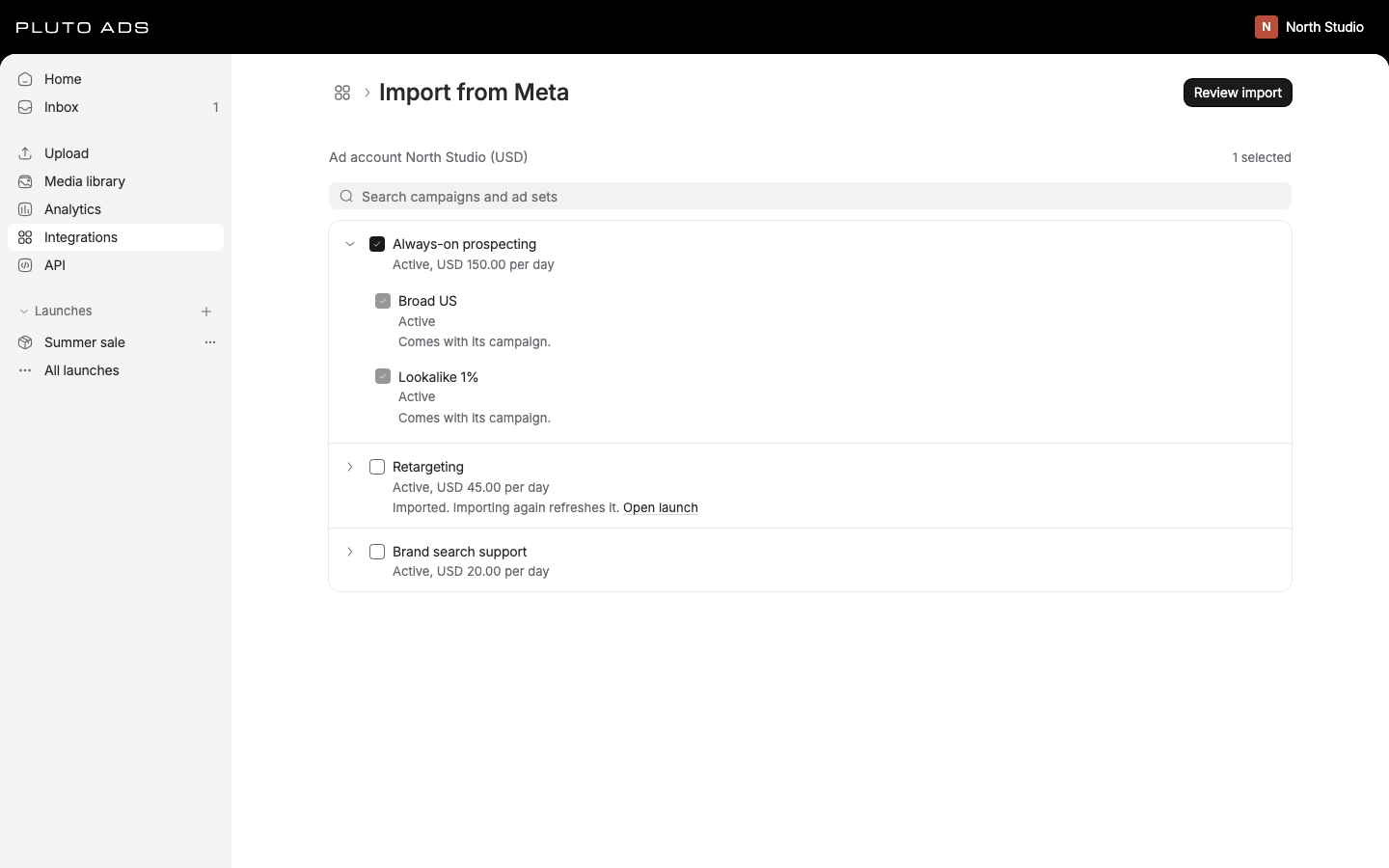
Each pick becomes one launch linked to the live objects. It reads as published, so pausing, budget changes and pending changes work exactly as on a launch Pluto published (see Publishing). Values shared by all imported ad sets and ads become launch settings; the rest become per-item values. An ad set picked on its own publishes into its existing campaign, which stays as it is in Meta. The same happens to a campaign whose objective, buying type or bid strategy Pluto can't represent: the launch publishes into it, and the campaign stays managed in Meta.
One pick brings at most 500 ads, so the launch is saved in one step. Import a larger campaign ad set by ad set: the report says "It has more than 500 ads. Import its ad sets one at a time."
A campaign or ad set that another launch already manages can't be picked again; the review marks it In another launch with a link to that launch. Remove it to import the rest.
Import report
The report lists, per pick, the launch it created or refreshed, how many ad sets and ads came along, how many images and videos were copied to your media library, and Open launch. Two lists explain the rest:
- Managed in Meta: values Pluto can't represent, such as some objectives, bid strategies, targeting (regions, cities, detailed interest combinations), frequency caps, hourly schedules, dynamic creative or Advantage+ creative enhancements it doesn't model. They stay read-only in Pluto, and we never write them back. Change them in Meta.
- Not imported: ads Pluto can't hold, with the reason. For example carousels, ads that promote an existing Page post, and catalog ads. They keep running in Meta, and they aren't linked to the launch.
Media copied for imported ads is deduplicated: a file already in your library isn't copied twice. The report has its own address, so you can reload it or share the link. Import more starts a new import.
Refreshing an import
Import the same campaign or ad set again to bring its launch in line with what's in Meta now. The review marks it Refresh.
A refresh is refused while the launch has pending changes: "Its launch has pending changes. Publish or discard them, then import again, so the refresh can't overwrite them." It's also refused while the launch is publishing: "Its launch is publishing. Import again when it finishes." This way a refresh never overwrites work nobody has published yet.
Reconnecting
Meta asks you to log in again about every 60 days. Integrations shows when Meta access lasts until, and reconnecting renews it. From 7 days before it ends, admins get an Inbox notice and an email, and the card shows Meta access ends in with the number of days and Reconnect Meta. When it has ended, the card says Meta access ended.
Meta can also stop accepting Pluto's access earlier. Integrations then shows Reconnect needed, and publishing, syncing and importing stop until an admin selects Reconnect Meta. The banner says which case it is:
- Reconnect Meta: Meta ended the access. This happens when a password changes, a session expires or access is removed in Business Settings.
- Meta permission missing: Meta no longer grants a permission Pluto needs, and says what it's for when it can. Reconnect and keep every permission selected on Meta's screen.
A connection that works but lacks the comment or lead permissions (for example one made before Pluto asked for them) isn't in Reconnect needed: publishing and syncing go on, and Integrations shows Reconnect Meta to turn on every feature.
Members see the same message, asking them to have an admin reconnect Meta in Integrations. While the connection waits, you can still browse what's synced, and we don't import new results from it.
Ad account status
Meta reports each ad account's status on every sync. Integrations shows a badge on the ad account and a banner with what to do, with a link to Meta Business Support or Meta's billing settings where it helps:
| Badge | What it means | What to do |
|---|---|---|
| Disabled | Meta disabled the account. Ads can't run. | Request a review in Meta Business Support. |
| Unpaid balance | Meta paused ads until the balance is paid. | Pay it in Meta's billing settings. |
| In review | Meta may hold new ads until its review ends. | Nothing, unless Meta asks. |
| Payment pending | Meta may hold new ads until a payment settles. | Check the payment method in Meta's billing settings. |
| Payment overdue | Ads keep running for now. | Update the payment method to avoid a pause. |
| Closing | Meta is closing the account. | Choose another ad account for new launches. |
| Closed | The account is closed. | Choose another ad account for new launches. |
Publishing refuses a disabled, unpaid, closing or closed account, and says so in the checklist.
Disconnecting
Admins open the menu next to Sync now, select Disconnect, then Disconnect Meta. We revoke Pluto's access in Meta when Meta allows it, delete the stored token and cancel open syncs. Your launches stay saved, and so does what was synced. Reconnect Meta before publishing again.
Removing Pluto Ads in your Facebook settings has the same effect: every workspace you connected is disconnected and its stored token deleted. If you also ask Facebook to delete your data, we delete your Meta connection details too (your Meta user ID, name and the permissions you granted), and Facebook shows you a confirmation code with a link to the request's status. See Delete your data.
Good to know
- One Meta connection per workspace. Everyone in the workspace publishes through it, within their role (see Getting started).
- Thumbnails in the structure are links hosted by Meta and can stop loading; the app then shows a plain tile.
- New launches start from your workspace's Meta defaults in Settings, set for the workspace or per ad account. See Launches.
- Agents can sync, read the structure and import through MCP. An admin agent can start connecting or reconnecting and give you the link, but you approve at Facebook yourself. See Agents.
- Developers: the structure and imports are in the API under Meta integration.